Utility Warehouse: Remote appointments
As Lead UX Designer at Utility Warehouse, I redesigned the partner-led remote appointment, the shared-screen alternative to a home visit that lockdown made essential.
Outcome
Partner-led sales ran through the remote appointment during lockdown. By December 2020 the partner and the prospect each had a defined state at every step of the remote appointment, from the invite to a dropped connection, and the wires covered an experienced partner joining to support a new one.
Context
Utility Warehouse sells its home services through self-employed partners, and the remote appointment is the assisted conversion journey they use when they cannot meet a prospect in person. The partner phones the prospect, asks them to type uw.co.uk/remote and talks them through a sales presentation, then generates a code. Once the prospect enters it, the partner can see their screen and guide them through the Join funnel.
Partners’ feedback showed where that journey failed, and most of it was about getting the prospect into the appointment. To get more appointments through to sign-up, I focused the redesign on joining and on handing control of the page between the people in the session.
Finding where the remote appointment failed
To find the steps where partners and prospects struggled most, I started with a voice-of-partner audit of the live tool. I laid its screens out on one Miro board, the partner’s journey above the prospect’s, and clustered the partners’ comments under the step each one was about.
Most comments were about getting into the appointment. Prospects searched for the address when asked to type it, the presentation and its videos failed on some browsers and phones, O and 0 got mixed up in appointment codes, and connections could take minutes or fail outright. Inside the session, prospects could not find the give-control button, older ones especially, and an order could not be edited, saved or emailed without starting again.
Most research participants were also running a video call in another app during the appointment, Zoom or WhatsApp among them. In a second frame I mapped how an experienced partner supported a new one in the live tool, with all three entering the same code.
Voice-of-partner audit, September 2020. The connector labels record that the partner saw nothing of the presentation, and saw the prospect’s page only after the prospect entered the code and pressed OK. The partners’ comments are blurred.
01Journey structures
Connecting the prospect before the presentation
In the live tool the partner could not see the presentation while talking the prospect through it, and saw the prospect’s screen only once the code had been entered. At the end of September I drew the first of two structures, where the prospect connects before the presentation starts. The presentation then plays inside the live session, with the call controls on screen and a Join now button into the Join funnel. The partner can see the prospect’s screen from the start and take them straight into sign-up.
In this structure the two addresses share one entry point, uw.co.uk/remote redirecting to uw.co.uk/join/remotely, and a link with the code in it opens the session once the prospect accepts the connection. When the partner sends the link, the prospect does not have to type the address or the code, the two steps many of the partners’ comments were about. One partner had asked for such a link. Either side can start a handover, the partner by asking for control or the prospect by offering it, and control changes hands only when the other confirms in a dialog.
The board’s frames cover a partner’s own appointment, an experienced partner supporting a new one remotely, and the same support for a face-to-face appointment, where the new partner is asked whether anyone is supporting them remotely.
Embedded presentation, full journey. Each view shows the other person’s cursor with a name tag, and I kept that pattern on the later boards. The branches above and below the presentation are the two handovers, one started by the partner and one by the prospect.
Sending the presentation ahead of the session
I drew the external-presentation board against five joining issues from the audit, the address, browsers and devices, video playback, the code and the connection. Ten days after the first structure I drew the alternative, where the prospect is sent the presentation first and accepts the partner’s connection when it ends. The partner picks the type of invite, one for the presentation or a direct one that skips the presentation and opens the Join funnel, then copies the invite or sends it by email. Either way, the prospect gets a link, with the address and the code as a fallback. The same invite can go to a supporting partner.
I mapped an entry point for each role and left the open questions on the board as stickies: whether a link lasts a day or only while the partner’s session is open, what a prospect sees on an expired link, and whether a supporting partner needs a link of their own.
External presentation, the invite. The same page with each invite type selected, the presentation link on uw.co.uk/remote and the direct one on uw.co.uk/join/remotely. My review notes sit around it, native share options and a customised name among them.
Both journey boards end on the same feature ideas, two-way and three-way video inside the session and live sketching on the shared page.
02Session controls
Making control easy to find and hand back
Prospects could not find the give-control button in the live tool, and some could not hand control back to the partner.
I benchmarked screen-sharing apps, Meet, Zoom and Slack, and took a convention from game interfaces that keeps controls at the bottom of the screen and alerts at the top.
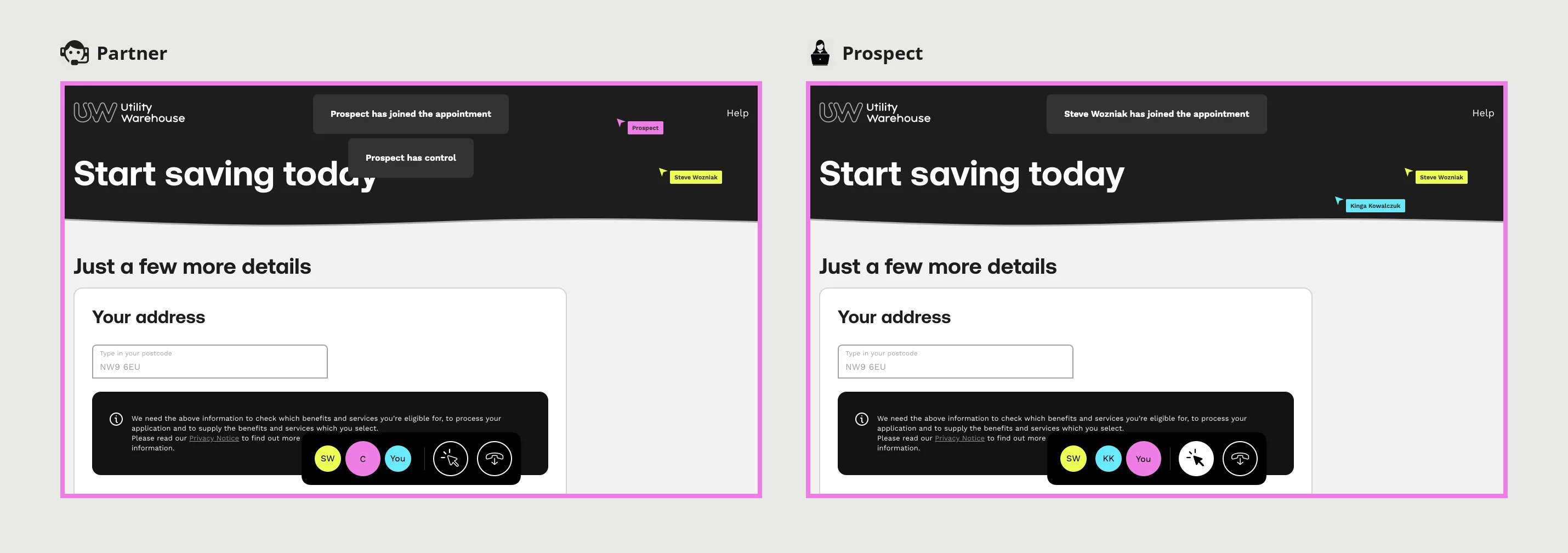
I put everyone’s initials, the control button and hang up into a bar at the bottom of the page. To show either person at a glance who has control, I gave the page border the colour of whoever has it, the same on both screens.
I drew every state of a handover for both sides, whichever side starts: asking for control, waiting for an answer, taking it and holding it, and the same states for giving it away. Private view covers the fields a partner must not see, with a heading that stays on screen while its explanation hides after ten seconds.
Live tool, partner’s view. The connection and control status sit beside the give-control button, the grey hand partners asked to make brighter.
Session-state wires, partner’s view. The same state redrawn, with the prospect’s initials in the larger circle while they have control.
External presentation, session controls. Four blocks cover the partner or the prospect asking for control or offering it, each with the partner’s screen above the prospect’s. My benchmark note sits top left, and the top rows end with private view.
03Session states
Showing each person the state of the session
Partners reported that connections in the live tool could take minutes or fail outright. With two or three people on one page, each of them needed to know who was connected, who had control, and what had happened when a connection was refused, ended or dropped. From the end of October to December I specified the session on a plainer set of wires, one frame per situation, and called the customer the prospect, as partners do.
The partner waits in a waiting room that still offers the invite choice from the external-presentation board. The prospect enters the code or follows the link, then accepts or denies the partner’s request to connect, with a reminder that the partner cannot see the information marked with the private-view icon. If the prospect denies the request, both go back to where they started, with an alert on each side.
Each role has a colour, pink for the prospect and cyan for the partner, and the border and the larger circle follow whoever has control. To stop anyone ending the appointment by accident, I put a confirmation on hang up that warns the appointment will have to start again. When a connection drops, the page dims behind a Trying to reconnect alert.
Session-state wires, joining. The partner’s waiting room above the prospect’s code page. The green line follows an accepted connection into the appointment, and the red line follows a refusal back to the start.
Session-state wires, edge cases. After a hang-up the partner lands on the partner login and the prospect on the code page, each with an Appointment ended alert. The partner’s sign-in details are blurred.
Letting experienced partners support new ones
An experienced partner could already join a new partner’s appointment in the live tool, and I kept that support for new partners on live appointments in both journey structures. In the wires the supporting partner enters the same code to observe, in the waiting room or once the appointment has started, and the partner accepts their request first. The prospect sees an alert when the supporting partner arrives, and a third set of initials in the bar, in yellow.
A last frame covers a partner and a supporting partner connecting before any prospect has joined, with an access code of their own.
Session-state wires, three-way session. One row per role, the supporting partner joining from the waiting room on the left and mid-appointment on the right. Control stays with the prospect or the partner throughout.
Most of what went wrong in the live tool happened before the session began, between typing the address and entering the code. In the embedded structure the prospect connects before the presentation starts, and in the external structure once it ends. In both, the prospect can join from a link the partner sends, or with the address and the code.
Sources
- Current experience and partner feedbackMiro, September 2020
- New journeys, embedded and external presentationsMiro, September and October 2020
- Session states and wireframesMiro, October to December 2020
Contact
Get in touch
Product design lead across research, design systems and handover, with coding agents in the loop. Contract, outside IR35, or a permanent lead role.
- Available
- Now
- Location
- London, remote or hybrid, UK and EU
- Right to work
- UK settled status, EU citizen
- RolesLead Product Designer, Principal Product Designer, Design Engineer
- Experience10+ years
- ScopeResearch, design systems, prototyping, handover, QA with agents
- LanguagesEnglish, Italian, Spanish
- Email[email protected]
- LinkedInlinkedin.com/in/dariocodipietro
Professional profile
Copy into your coding agentSkills
- Product design, end to end
- UX and interaction design
- Visual design and motion
- Prototyping in Figma and code
- Design systems at scale
- User research and testing
- A/B testing and analytics
- Strategy and discovery
- AI product design
- Design to code, with agents
- Accessibility, WCAG 2.2 AA
- Leadership and mentoring
Platforms
iOS, Android, responsive web, smart TV and connected devices
Sectors
- AI products
- B2B SaaS
- Consumer apps
- Streaming, media and sport
- Health, wellness and food
- Legal tech
- Telecoms and utilities
Tools
- Figma
- FigJam
- Figma Make
- Claude Design
- Framer
- Axure RP
- Storybook
- Claude Code
- Cursor
- Codex
- MCP
- GitHub
- Linear
- Jira
- Confluence
- Notion
- Miro
- Prolific
- Lyssna
- Maze
- PostHog
- Amplitude